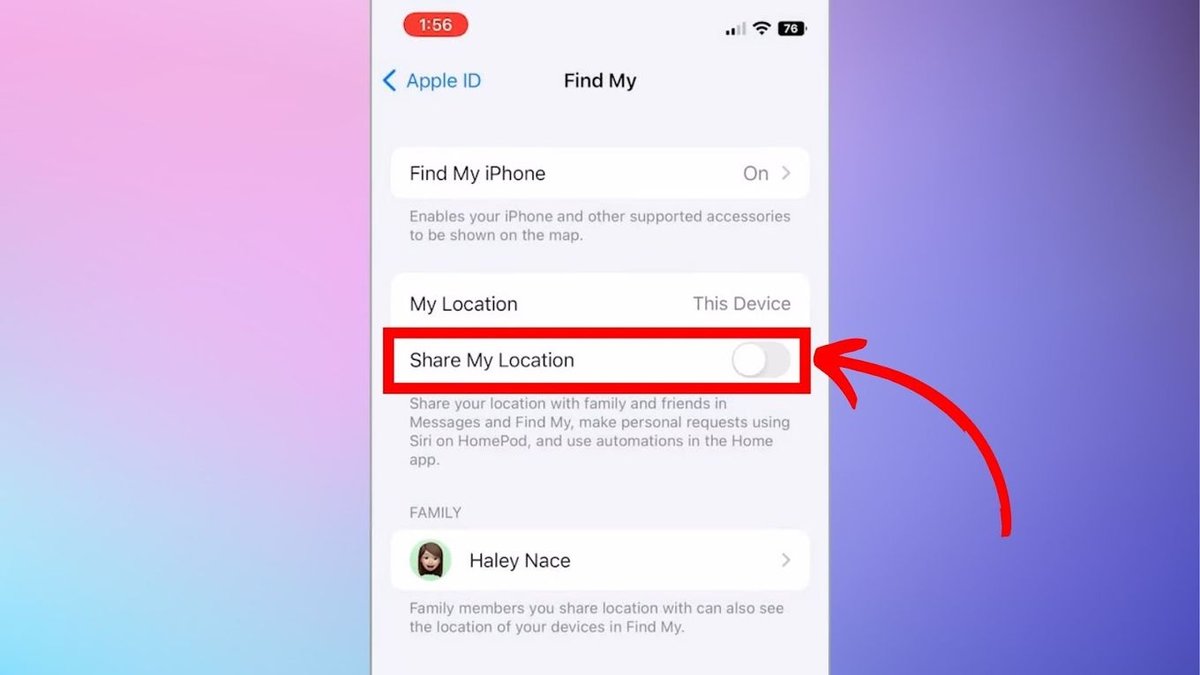
In our hyper-connected world, sharing your real-time location has become as common as sending a text. From coordinating with friends for dinner on Google Maps to letting family track your journey, the convenience is undeniable. Yet, this constant digital breadcrumb trail, while helpful, can silently erode your personal privacy and even your safety. Understanding how to stop location sharing isn't just a tech tip; it's a fundamental step toward reclaiming control over your personal data and digital autonomy.
This comprehensive guide will walk you through the essential step-by-step guides to stop location sharing across your most used platforms and devices. We'll demystify the settings, clarify what happens when you turn sharing off, and provide actionable strategies to ensure your location data remains truly private, when you want it to.
At a Glance: Quick Control Over Your Digital Footprint
- Google Maps First: Learn to stop sharing your live location with specific people directly from your phone or computer.
- Silence Background Tracking: Prevent apps like Google Maps from monitoring your location when you're not actively using them.
- Set Time Limits: Use Google Maps' built-in feature to automatically stop sharing after a set period.
- No Notifications: Rest assured, people won't be alerted when you stop sharing your location.
- Device-Wide Lockdown: Understand how to disable location services for your entire iPhone or Android device.
- App-Specific Permissions: Customize location access for individual apps like Facebook, Snapchat, Twitter, and Instagram.
- Family Sharing Check: Review and adjust location sharing within Apple Family Sharing and Google Family Link.
- VPN for Added Security: Explore how a Virtual Private Network can mask your general location online.
- Regular Review: Make privacy settings check-ups a routine part of your digital life.
Why Location Sharing Deserves Your Attention
Location data is incredibly powerful. It paints a detailed picture of your daily routines, your home, your workplace, and everywhere in between. While sharing it with trusted individuals can be a lifeline in emergencies or a handy tool for meeting up, unintended or continuous sharing can expose you to risks.
Think about it:
- Privacy Breaches: Apps might sell or share your location data with third parties for targeted advertising or other purposes.
- Personal Safety: Unwanted individuals could potentially track your movements if they gain access to your shared location.
- Autonomy: You should have the ultimate say in who knows where you are, and when.
Taking control begins with understanding the mechanisms behind location sharing, starting with one of the most popular platforms: Google Maps.
Google Maps: Your Primary Control Point
Google Maps is often the go-to for real-time location sharing. It's incredibly convenient, but also a major hub for your location data. Let's tackle how to manage it.
Stopping Sharing from Your Phone (Android & iOS)
Whether you're an Android aficionado or an iPhone loyalist, the steps to stop sharing your location through the Google Maps app are largely identical and straightforward.
- Open Google Maps: Launch the Google Maps application on your smartphone.
- Tap Your Profile Picture: Look for your circular profile picture or initial in the upper right-hand corner of the screen and tap it. This opens your account menu.
- Select "Share location": From the menu that appears, find and tap on "Share location."
- Review Sharing List: You'll now see a list of people with whom you are currently sharing your real-time location. Each person will likely have their profile icon and name displayed.
- Choose Who to Stop: Tap on the name of the specific person or contact you wish to stop sharing your location with.
- Confirm "Stop sharing": A confirmation prompt will appear, often asking if you're sure. Tap "Stop sharing" to finalize the action.
Repeat steps 5 and 6 for every individual you want to remove from your location-sharing list. It’s a quick process that gives you immediate control.
Stopping Sharing from Your Computer Browser
Sometimes, you might initiate location sharing from your desktop, or simply prefer to manage your Google account settings from a larger screen.
- Sign In to Google Maps: Go to Google Maps (maps.google.com) in your web browser and ensure you're signed in with the correct Google account.
- Click the Side Menu: On the left side of the screen, you'll see a three-horizontal-line "hamburger" menu icon. Click it to open the main menu.
- Select "Share location": Scroll down the menu and click on "Share location."
- View Contacts: Similar to the mobile app, you'll see a list of contacts who are currently viewing your location.
- Click "Stop sharing": Next to each person's name on the list, you'll see a "Stop sharing" button. Click this for each individual you want to stop sharing with.
Beyond Basic Sharing: Advanced Google Maps Controls
Just stopping sharing with individuals is a great start, but Google Maps offers more granular control over how your location is used.
Silencing Background Location Use
Many apps, including Google Maps, can continue to track your location even when you're not actively using them. This "background location" can be a major privacy concern. Here's how to turn it off for Google Maps specifically:
- For Android Devices:
- Go to your phone's Settings app.
- Scroll down and tap on Location.
- Look for "App location permissions" or a similar option.
- Find Google Maps in the list of apps.
- Tap on Google Maps and select an option like "Allow only while using the app" or "Don't allow." Selecting "Don't allow" will prevent the app from accessing your location entirely, even when open. "Allow only while using the app" is often a good balance for functionality and privacy.
- For iOS Devices (iPhone/iPad):
- Open your device's Settings app.
- Scroll down and tap on Privacy & Security (on older iOS versions, simply "Privacy").
- Tap on Location Services.
- Scroll through the list of apps until you find Maps (the default Apple Maps app) and Google Maps.
- Tap on Google Maps.
- Choose between "Never" or "While Using the App." "Never" offers maximum privacy, while "While Using the App" allows it to function when open but stops background tracking.
By adjusting these settings, you prevent Google Maps from tracking your whereabouts when it's not in the foreground, giving you more peace of mind.
Setting Time Limits for Automatic Sharing
Sometimes, you do want to share your location for a specific period – say, until you arrive at a destination or for a couple of hours during an event. Google Maps provides a smart feature for this: time limits.
When you initiate location sharing, you'll be given options like "1 hour," "2 hours," or "Until you turn this off." By selecting a specific time limit (e.g., 1 hour), the sharing will automatically deactivate once that time elapses. This prevents accidental long-term sharing and removes the need for you to manually remember to turn it off. It’s a simple yet highly effective way to manage temporary sharing.
What Happens When You Hit "Stop Sharing"?
It's natural to wonder about the repercussions when you cut off location sharing. Here’s what you need to know:
- Real-time Tracking Ends: The moment you stop sharing, the person or people you removed will no longer be able to see your live movements on their map. Their view of you will either freeze at your last known location before you stopped sharing or simply disappear, depending on the platform version.
- No Notification or Alert: This is a key point for many. Google Maps (and most other platforms) do not send a notification or alert to the person you stopped sharing with. They won't receive a message like "John Doe has stopped sharing their location with you." This allows you to manage your privacy without awkward conversations or immediate explanations.
- You Can Reactivate Anytime: Stopping location sharing is not a permanent decision. You can always choose to start sharing your location again with the same person or others at any point.
This discreet functionality empowers you to make privacy decisions without feeling obligated to explain them immediately. If you're looking for even more ways to stop location sharing without them knowing, there are several other methods to explore that go beyond app-specific settings. For instance, sometimes you might want to use methods that inherently provide a layer of anonymity, which we'll touch on later. Knowing you can stop location sharing discreetly is a powerful aspect of digital autonomy.
Smart Habits for Safer Google Maps Location Use
Beyond the technical steps, adopting a few smart habits can significantly enhance your privacy and safety when using Google Maps for location sharing.
- Share Only with Trusted Individuals: This might seem obvious, but it's the golden rule. Only share your live location with people you absolutely trust, whose intentions you are certain of, and who you know will respect your privacy.
- Utilize Time Limits for Temporary Sharing: As discussed, always opt for time-limited sharing when possible. Need friends to track your arrival? Set it for an hour. Meeting someone at a specific spot? Share for 30 minutes. This proactive approach prevents your location from being accessible indefinitely.
- Periodically Review Your Sharing List: Make it a habit to check the "Share location" section in Google Maps every few weeks or months. This ensures no outdated sharing permissions are still active and helps you prune any unnecessary access. A quick glance can save a lot of potential privacy headaches.
- Use Incognito Mode for Temporary Privacy: If you're exploring a new area, searching for sensitive locations, or simply don't want your navigation history recorded, use Google Maps' Incognito mode. While this doesn't stop live location sharing with others, it prevents your activity (like searches and routes) from being saved to your Google Account.
- Understand the "Why": Before you share, always ask yourself why you're sharing. Is it for safety, convenience, or just out of habit? Being mindful of the purpose can help you decide if it's truly necessary.
Beyond Google Maps: Comprehensive Device & App Location Privacy
While Google Maps is a common starting point, your location data can be accessed and shared by your entire device and countless other apps. Taking holistic control means digging deeper into your device and other popular applications.
The Master Switch: Disabling Device-Wide Location Services
The most sweeping way to control location sharing is to turn off location services for your entire device. This effectively cuts off all apps and system services from accessing your GPS, Wi-Fi, and cellular data for location purposes.
- For iPhone (iOS):
- Go to Settings.
- Tap on Privacy & Security.
- Tap Location Services.
- Toggle the main Location Services switch to the Off position.
- Pro Tip: If you need location for certain essential apps (like emergency services), you can leave Location Services on but customize access for individual apps below the main toggle. Choose "Never" for apps you don't trust with your location.
- For Android Devices:
- Open Settings.
- Scroll down and tap on Location.
- Toggle the main Location switch to the Off position.
- Pro Tip: Similar to iOS, you can also manage "App location permissions" here, allowing you to grant or deny location access on an app-by-app basis while keeping the overall service active for necessary functions.
Turning off device-wide location services will impact navigation, weather apps, and other location-dependent features. It's a trade-off between convenience and absolute privacy, which you can manage by granting permissions only to apps you deem essential.
App-by-App Lockdown: Tailoring Permissions
Most apps request location access during installation or first use. It's crucial to review and adjust these permissions regularly.
- Facebook:
- Open the Facebook app.
- Go to Menu (three lines) > Settings & Privacy > Settings.
- Scroll down to "Permissions" and tap Location.
- Here you can manage "Location Services" (which links to your device settings) and "Location History." Ensure "Location History" is off if you don't want Facebook storing your past locations.
- You can also review "Location Access" for the app directly through your device's app permissions settings (Settings > Apps > Facebook > Permissions > Location).
- Snapchat:
- Open Snapchat and tap your profile icon (top left).
- Tap the Gear icon (top right) to go to Settings.
- Scroll down to "Privacy Controls" and tap See My Location.
- Enable Ghost Mode. This makes your Bitmoji disappear from the Snap Map and stops others from seeing your real-time location. You can choose to enable it for 3 hours, 24 hours, or indefinitely.
- Twitter (now X):
- Open the app and tap your profile icon > Settings & Privacy > Privacy and safety.
- Under "Data and permissions," tap Location Information.
- Make sure "Add location to my Tweets" is turned off. This prevents your tweets from being tagged with your precise location.
- Instagram:
- Instagram primarily uses your device's location settings. Go to your device Settings > Apps (or Privacy/Location Services on iOS) > Instagram > Permissions > Location.
- Set it to "Ask every time" or "Don't allow" if you want to prevent location tagging. You can also manually remove location tags from individual posts after publishing.
The Ultimate Disconnect: Airplane Mode
For a quick, comprehensive, and temporary location shutdown, Airplane Mode is your best friend. When enabled, it disables all wireless communication, including cellular, Wi-Fi, Bluetooth, and GPS. This means your phone cannot transmit or receive any signals, effectively making it untraceable via its usual connectivity.
- How to Activate:
- iPhone: Swipe down from the top right corner (or up from the bottom for older models) to open Control Center, then tap the airplane icon.
- Android: Swipe down from the top of the screen twice to open Quick Settings, then tap the airplane icon.
You can then selectively re-enable Wi-Fi or Bluetooth if needed, while still keeping cellular and GPS signals off.
Untangling Family Sharing Location (Apple & Google)
Family sharing features, designed for convenience and safety, can often override individual privacy settings. It's crucial to review these.
- Apple Family Sharing:
- Go to Settings.
- Tap on Your Name (at the very top).
- Tap Family Sharing.
- Tap Location Sharing.
- Here, you can choose to stop sharing your location with specific family members or stop sharing your location from a specific device.
- Google Family Link:
Google Family Link is designed for parents to manage their children's accounts, including location. If you are part of a Google family group, your location settings might be managed by a family administrator.
- The family administrator needs to use the Family Link app.
- They can select the child's (or family member's) account.
- Navigate to Location settings to adjust permissions, including turning off location sharing for that specific account.
- Note for Adults: If you're an adult linked via Google Family Group (not Family Link), your own device's Google Maps and general location settings typically control your sharing, but it's always good to verify within your Google Account settings (
myaccount.google.com/locationhistory).
Adding a Layer: How a VPN Complements Your Privacy Efforts
While a VPN (Virtual Private Network) doesn't directly stop your phone's GPS from sharing your exact location, it's a powerful tool for masking your IP address and general location when you're online. When you connect to a VPN server, your internet traffic is routed through that server, making it appear as if you are browsing from the server's location rather than your actual physical location.
This can be particularly useful for:
- Masking your IP address: Preventing websites and online services from pinpointing your general geographical area based on your internet connection.
- Enhancing overall online anonymity: Making it harder for third parties to track your browsing habits and link them to your real identity.
- Circumventing geo-restrictions: Accessing content or services only available in certain regions.
Using a reputable VPN adds a significant layer to your overall digital privacy strategy, especially when combined with the step-by-step app and device settings we've already covered. It's a proactive measure to manage how your digital footprint is perceived online.
Reclaiming Control: Removing App Location Permissions
Beyond the main social media apps, countless other applications on your phone might have location permissions you granted long ago and have forgotten about. Regularly reviewing and revoking these permissions is vital.
- For Android:
- Go to Settings > Apps (or "Apps & Notifications," "Applications").
- Tap "See all apps" or similar.
- Select a specific app from the list.
- Tap Permissions.
- Tap Location.
- Choose "Don't allow" or "Ask every time."
- For iPhone (iOS):
- Go to Settings.
- Scroll down and tap on an individual app from the list.
- Tap Location.
- Choose "Never" or "Ask Next Time Or When I Share."
This granular control ensures that only apps absolutely necessary for your daily life have access to your location data.
Simple Yet Effective: Logging Out of Location-Based Apps
Sometimes the simplest solution is the best. Many apps rely on you being logged in to track and share your location. By logging out of apps that have location sharing enabled (especially social media or dating apps), you effectively stop them from actively broadcasting your whereabouts. While not a permanent solution if you regularly use the app, it's a quick way to halt active sharing.
The Permanent Solution: Deleting Personal Data and Accounts
For applications you no longer use or deeply distrust, the most permanent solution is to delete your personal data and, if possible, your entire account. Many apps store your location history and other data even after you uninstall them.
- Check App's Privacy Policy/Settings: Most apps will have an "Account" or "Privacy" section within their settings where you can find options to manage or delete your data, or even close your account entirely.
- GDPR/CCPA Rights: In regions with strong data protection laws (like Europe's GDPR or California's CCPA), you have the right to request that companies delete your personal data. Look for data request forms on the app's website.
This is the ultimate step for any app you want to completely sever ties with, ensuring your location data is permanently removed from their servers.
Regular Privacy Check-Ups: Your Ongoing Commitment
Taking control of your location sharing isn't a one-time task; it's an ongoing commitment to your digital well-being. Technology evolves, apps update, and your own comfort levels with sharing may change over time.
Make it a habit to:
- Review Your Phone Settings Monthly: Spend 10-15 minutes checking your device's main Location Services settings and app-specific permissions.
- Audit Your Apps Quarterly: Go through your installed apps and consider which ones truly need location access. Delete or restrict those that don't.
- Stay Informed: Keep an eye on tech news and privacy updates. New features or privacy concerns can emerge rapidly.
By consistently applying these step-by-step guides and adopting a proactive mindset, you'll not only stop unwanted location sharing but also gain confidence and peace of mind in how your personal data is being used. It's your location, and ultimately, your choice.