The moment you toggle off location sharing, a quiet shift happens in your digital world. But the big question lingering in many minds is: What happens when you stop sharing location, and perhaps more crucially, do they know? In an age where digital footprints are constantly being tracked, understanding how to reclaim your privacy is paramount. Whether you're seeking a moment of personal space, ensuring your safety, or simply managing who sees what, knowing the mechanics of location sharing (and stopping it) can empower you.
For many, the fear of causing offense or alerting someone to a deliberate change in sharing status can be a significant deterrent. Let's peel back the layers and uncover the truth about what really happens when you choose to go off-grid.
At a Glance: Your Quick Guide to Location Sharing Privacy
- No Alert for Them: If you stop sharing your location with a specific person via Apple's Find My app, they do not receive a notification that you've done so.
- You'll See a Private Note: You, the sharer, will see a small, internal iMessage notification confirming you've stopped sharing with that contact – but only you see it.
- Discovery by Investigation: The other person will only realize you've stopped sharing if they actively try to check your location and find it unavailable or outdated.
- Starting Up Again Does Notify: If you re-enable location sharing with someone, they will receive a notification that you've started sharing.
- Multiple Discrete Methods: There are several ways to manage your location sharing, ranging from temporary pauses to more permanent adjustments, often without sending a public alert.
- Privacy is a Choice: Understanding these options puts you firmly in control of your digital boundaries.
The Big Reveal: Do They Get a Notification When You Stop Sharing?
Let's cut right to the chase because this is the core of most people's concerns: No, for the most common scenario, they do not.
When you choose to stop sharing your location with a specific individual using Apple's Find My app (or similar direct sharing features), the system is designed for discretion. The person you were sharing with will not receive an explicit pop-up, text message, or any other direct alert stating, "So-and-so has stopped sharing their location with you."
Instead, the change is subtle from their end. If they were to open their Find My app and try to locate you, your icon might disappear, show as "Location Not Available," or display a very old, stale location. It’s a passive discovery, not an active notification. Think of it like a light turning off: you only notice it's off if you were looking for it to be on.
What You See: Interestingly, when you take this step, you will receive a small, private iMessage notification on your device, confirming that "You stopped sharing location with [Contact Name]." This is for your own record, not for public broadcast.
The Catch: Starting Up Again Does Notify: Here's an important nuance: while stopping sharing is generally silent, starting to share your location with someone will usually trigger a notification on their end. So, if you decide to resume sharing, be aware that the other person will be informed.
Why You Might Need to Go Off-Grid: Valid Reasons for Digital Privacy
The desire to stop sharing your location isn't always about secrecy or mistrust. Often, it's about reclaiming personal boundaries and protecting your digital self. Here are some perfectly valid reasons why you might choose to adjust your location sharing settings:
- Protecting Personal Privacy: We all need our personal space, even digitally. Constant location sharing can feel like surveillance, impacting your sense of autonomy and freedom. You have a right to decide who knows where you are and when.
- Ensuring Personal Safety & Security: In situations involving harassment, stalking, or even just feeling unsafe, cutting off location access can be a critical safety measure. Knowing you can limit this data can provide peace of mind.
- Maintaining Professional and Personal Boundaries: Perhaps you're attending a confidential meeting, surprising a loved one, or simply don't want your colleagues or family tracking your every move outside of work hours. Location privacy helps keep different areas of your life separate.
- Avoiding Unwanted Location-Based Marketing: Many apps and services use your location to push targeted ads or promotions. Limiting this access can reduce the amount of unwanted marketing you encounter.
- Bolstering Cybersecurity: Location data, like any personal information, can be a target for cybercriminals. Reducing your digital footprint, including location sharing, adds another layer of defense against potential misuse or identity theft.
Mastering the Art of Discrete Location Control: Your iPhone Toolkit
Your iPhone offers several pathways to manage your location sharing, some more overt than others. The key is understanding which method suits your need for discretion and control. Here's how to navigate them effectively:
Method 1: Cutting Ties with a Specific Individual (The Direct Approach)
This is the most common and discrete way to stop sharing with just one person, without affecting other sharing arrangements or your ability to find your own device.
How to do it:
- Open the Find My app: This is your central hub for location management.
- Tap "People": Located in the lower-left corner of the screen.
- Select the person: Tap on the contact with whom you want to stop sharing your location.
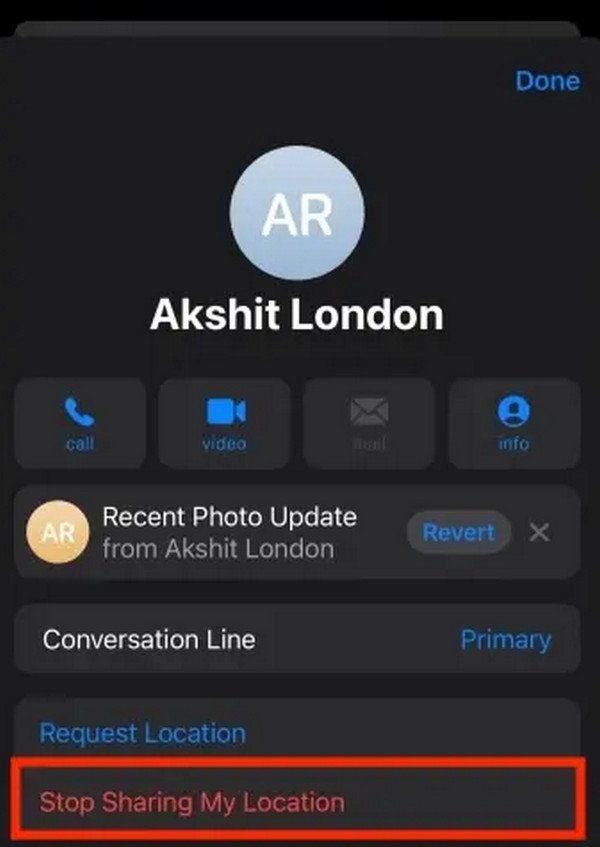
- Scroll down and tap "Stop Sharing My Location."
- Confirm: Tap "Stop Sharing Location" again when prompted.
Why it works: This method specifically targets an individual sharing link, leaving no trace from their perspective beyond the cessation of your location updates. They won't receive a notification; your location will simply no longer be available when they check. For a deeper dive into these stealthy moves, you can explore guides on how to stop sharing location discreetly.
Method 2: Taking a Temporary System-Wide Pause (The "Me" Tab Trick)
If you need a broader, temporary pause from all location sharing via Find My, this method disables it for everyone you're currently sharing with.
How to do it:
- Open the Find My app.
- Tap "Me": Found in the bottom-right corner.
- Toggle "Share My Location" off: Tap the green switch next to it to disable it. It will turn gray.
- Re-enable when ready: Tap the toggle again to turn it back on.
Important consideration: While this stops sharing with everyone, it also prevents you from being able to locate your own iPhone if it goes missing while this setting is off. Use this for short-term privacy needs when you're confident your device is safe. No one is notified when you toggle this off.
Method 3: The Decoy Device (Sharing from Another Apple Gadget)
Have an old iPad or a secondary iPhone? You can use it to 'spoof' your location, making it appear as though you're somewhere you're not, without anyone being notified of the switch.
How to do it:
- Ensure both devices are signed into the same Apple ID.
- On the device you want to share location from (the decoy): Go to Settings > [Your Name] > Find My.
- Tap "Use This [Device] as My Location." Select the secondary device.
Why it works: Now, anyone trying to locate you through Find My will see the location of your chosen decoy device, not your primary phone. This creates a convincing illusion without any notification of the change being sent to those you're sharing with. It's an excellent way to maintain privacy while still appearing "on the map." This strategy is one of the more advanced techniques to stop sharing your location discreetly.
Method 4: The Subtle Freeze (Turning Off Background App Refresh for Find My)
This method is less about completely stopping sharing and more about making your location updates stale or infrequent. It's a subtle way to create ambiguity.
How to do it:
- Go to Settings > General > Background App Refresh.
- Find "Find My" in the list.
- Toggle it off.
What happens: Your iPhone will now only update your location in the Find My app when you actively open the app or when other system-level processes trigger it. This means your location might appear fixed at an old spot for extended periods, or only update sporadically, making real-time tracking difficult without completely severing the connection.
Method 5: App-Specific Limits (Taming Rogue Trackers)
Beyond Find My, many individual apps request and use your location. This method helps you control which ones get access.
How to do it:
- Go to Settings > Privacy & Security > Location Services.
- Scroll through the list of apps.
- Tap on each app and choose its location access setting: "Never," "Ask Next Time Or When I Share," "While Using the App," or "Always."
Important note: This controls app-level location access but does not directly impact your Find My sharing settings. It's crucial for broader privacy, but won't stop someone tracking you specifically via the Find My app if you're still sharing there.
Method 6: The Digital Blackout (Airplane Mode)
This is the most drastic, but undeniably effective, temporary way to stop all forms of location sharing and communication.
How to do it:
- Open Control Center: Swipe down from the top-right corner of your screen (or up from the bottom on older iPhones).
- Tap the airplane icon: It will turn orange when active.
Consequence: While incredibly effective at stopping location updates by cutting off all cellular, Wi-Fi, and Bluetooth signals, Airplane Mode also disables calls, messages, and internet access. It's best reserved for short periods when you need complete disengagement, as it will make your phone practically unusable for communication.
Beyond the Basics: Advanced Tactics (and Their Trade-offs)
For those seeking even more robust or specific control over their digital location, there are advanced methods, though they often come with increased complexity and potential risks.
Location Spoofing Apps and VPNs
- Third-Party Location Spoofing Apps: These tools, often available for desktop, can change your iPhone's perceived GPS location to anywhere in the world. They are highly effective at faking your physical presence but can be complex to set up, may require developer mode or even jailbreaking your device, and can sometimes lead to stability issues or void warranties. They typically do not notify others of the change, as your phone simply reports a different location.
- VPNs with Location Obscuring Features: A Virtual Private Network (VPN) primarily masks your IP address, making it appear as though your internet traffic is originating from a different geographic location (the VPN server). Some VPNs offer additional features to try and "spoof" your device's location, but this is generally less effective for GPS-based tracking (like Find My) and more effective for IP-based location services used by websites and streaming apps. While useful for general online privacy, they are not a foolproof solution for stopping GPS tracking.
When considering these advanced options, always weigh the benefits against the technical hurdles and potential risks to your device's security and functionality. For simpler, safer methods, the iPhone's built-in options are often sufficient, especially when you need to understand how to stop sharing location discreetly.
Sharing Smarter: Intentional & Temporary Location Access
Sometimes, you do want to share your location, but with clear boundaries. Apple offers features that allow for more intentional, time-limited sharing, giving you control over how long you're visible.
Time-Limited Sharing
Instead of indefinitely sharing your location, you can choose to share for a set period.
How to do it (when initiating sharing):
- In the Find My app, when you select a contact to share with, you'll see options like "Share for One Hour," "Share Until End of Day," or "Share Indefinitely."
- Choose the time-limited option that suits your needs.
This is excellent for meeting up with friends, letting family know you're safe on a journey, or for specific safety scenarios without committing to continuous sharing.
Leveraging iOS 17's Check In Feature
For users running iOS 17 or newer, the "Check In" feature in Messages is a powerful tool for temporary, consent-based location sharing.
How it works:
- When you initiate a Check In, you select a trusted contact.
- You then specify your destination.
- Your contact is automatically notified when you arrive safely.
- If you don't reach your destination as expected, the Check In feature will proactively share details with your trusted contact, including your last known location, battery level, and cellular service status, until you respond.
This is a fantastic safety feature that provides temporary, need-based location access without continuous surveillance. It ensures someone knows your progress and can assist if you don't arrive as planned, offering peace of mind for both parties.
Common Questions About Location Sharing & Privacy
The world of location data can be confusing. Here are answers to some frequently asked questions:
Q: Does turning off "Location Services" completely stop Find My from tracking me?
A: If you disable "Share My Location" within the Find My app (Method 2 above), then yes, Find My will stop sharing your location. Turning off the broader "Location Services" in your iPhone's Privacy settings effectively cuts off all apps and system services from accessing your location, which would include Find My. However, it's a more drastic step with wider implications for your phone's functionality (e.g., maps, weather, camera geotagging).
Q: Can someone track my iPhone if it's off or out of battery?
A: Generally, no. When your iPhone is completely off or has run out of battery, its GPS and cellular radios are inactive, meaning it cannot transmit its location. However, with iOS 15 and later, a drained iPhone can still be located for a short period even when "off" by leveraging its low-power Find My network capabilities, using other nearby Apple devices. This is for finding your own lost device, not for others to track you.
Q: What's the difference between "Location Services" and "Share My Location"?
A: Location Services is a system-wide setting (Settings > Privacy & Security > Location Services) that governs which apps and system services can access your location data. Share My Location is a specific feature within Find My (and some messaging apps) that governs whether your location is transmitted to specific people or groups. You can have Location Services on, but still choose not to Share My Location with anyone.
Q: If I remove someone from my Find My list, do they get a notification?
A: No. Removing someone from your "People" list in Find My is functionally similar to using the "Stop Sharing My Location" option. They will simply no longer see your location and will not receive an explicit notification of your action. This is another effective way to know [placeholder_link slug="how to stop sharing location discreetly"] when you need to maintain privacy.
Q: What about location sharing in other apps like WhatsApp, Messenger, or Google Maps?
A: Location sharing within third-party apps is typically separate from Apple's Find My. Each app has its own permission settings and sharing features. If you've shared your location through WhatsApp, for example, you'd need to stop that sharing within the WhatsApp app itself (usually by ending the "Live Location" share). Always check the privacy settings within individual apps for complete control.
The Bottom Line: Owning Your Digital Footprint
In an increasingly connected world, your location data is a valuable piece of your personal information. Understanding what happens when you stop sharing location and the various methods available empowers you to make informed choices about your privacy.
Whether you need to step away from constant tracking for a moment of peace, protect your safety, or simply manage your digital boundaries, your iPhone provides a robust set of tools. Regularly review your privacy settings, and remember that owning your digital footprint means taking control of where and with whom you share your presence. Your privacy is a right, and now you have the knowledge to uphold it.